

Sharing a File or Folder
You can share from several places in the app:- Right-click a file or folder in the file tree and select Share
- Open the Info Panel and click the Sharing tab
- Use the Share button in the dashboard folder view
Public Links
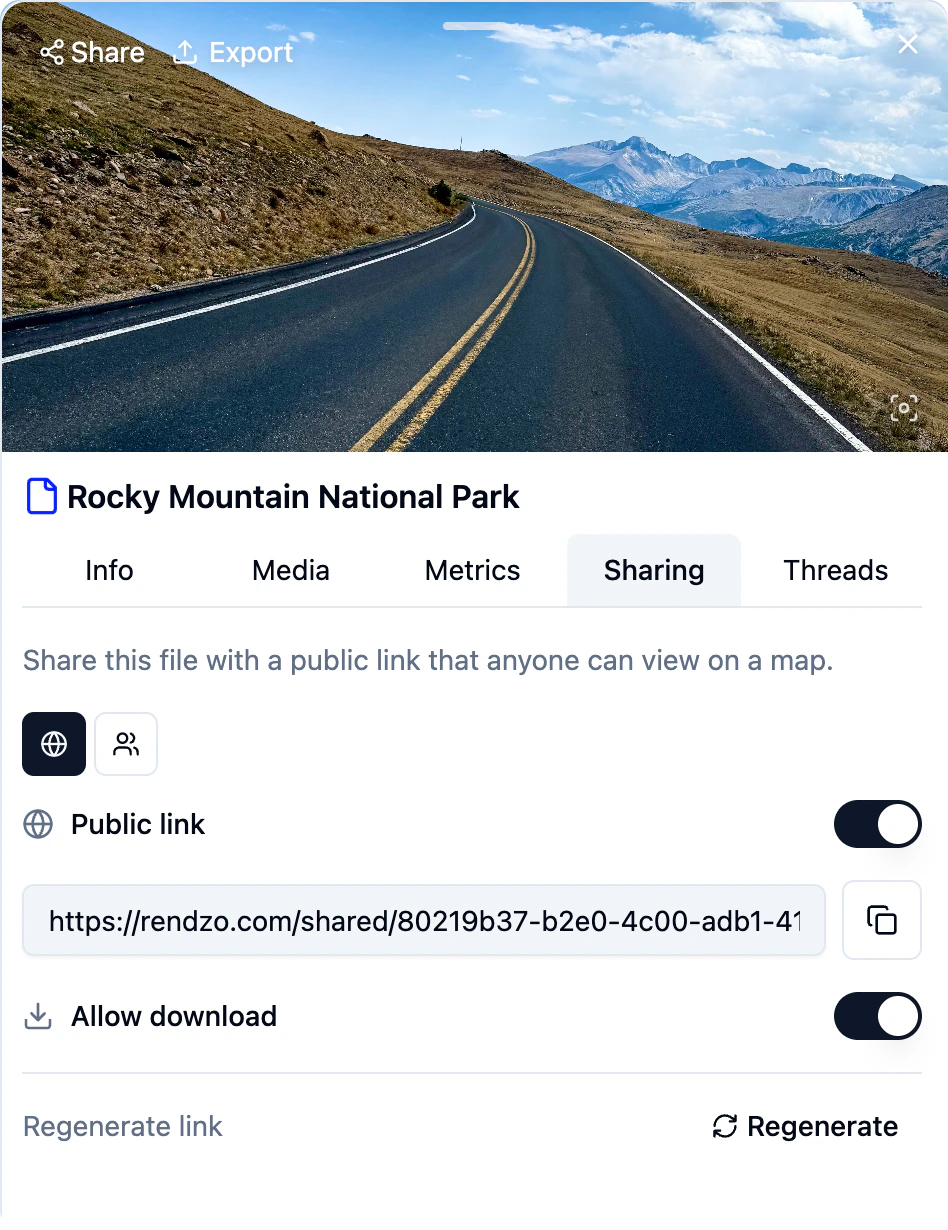
Toggle Public link on to generate a shareable URL. Anyone with the link can view your content on a standalone map page.Sharing
- Allow download — Let visitors download the original GPX files (on by default)
- Regenerate link — Invalidate the current URL and create a new one. Useful if you shared a link you want to revoke
rendzo.com/shared/abc123?code=...
Inviting People
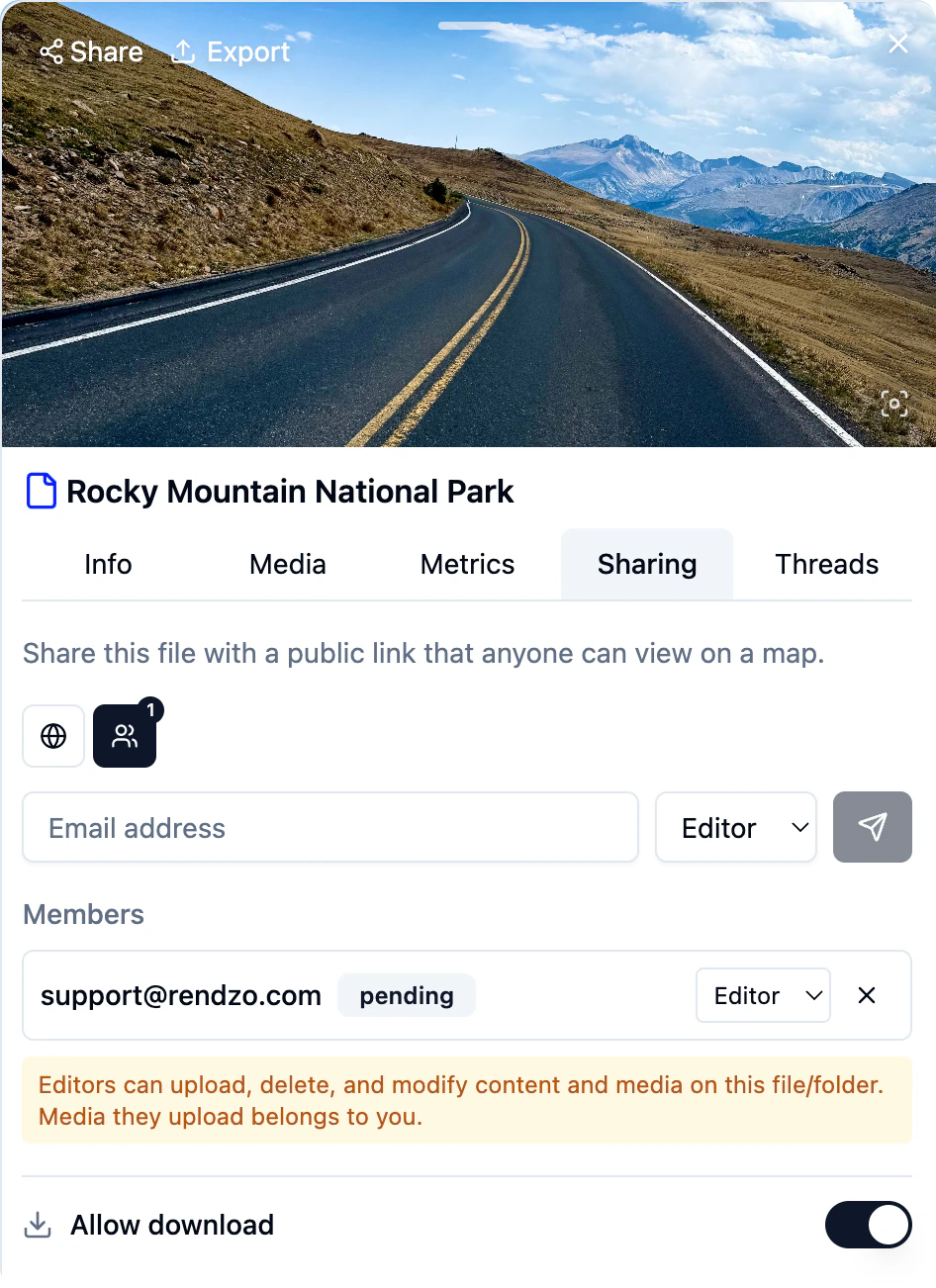
Inviting people by email requires a Pro subscription. Public links are available on all plans. All plans can receive a shared File/Folder as a Viewer or Editor.
Sharing
- Enter their email address
- Choose a role: Viewer or Editor
- Click Send
Roles
- Viewer — Can view files and tracks on the map. Cannot edit, upload media, or rename.
- Editor — Full editing access: modify routes, add waypoints, upload media, and rename files.
Shared Map Preview
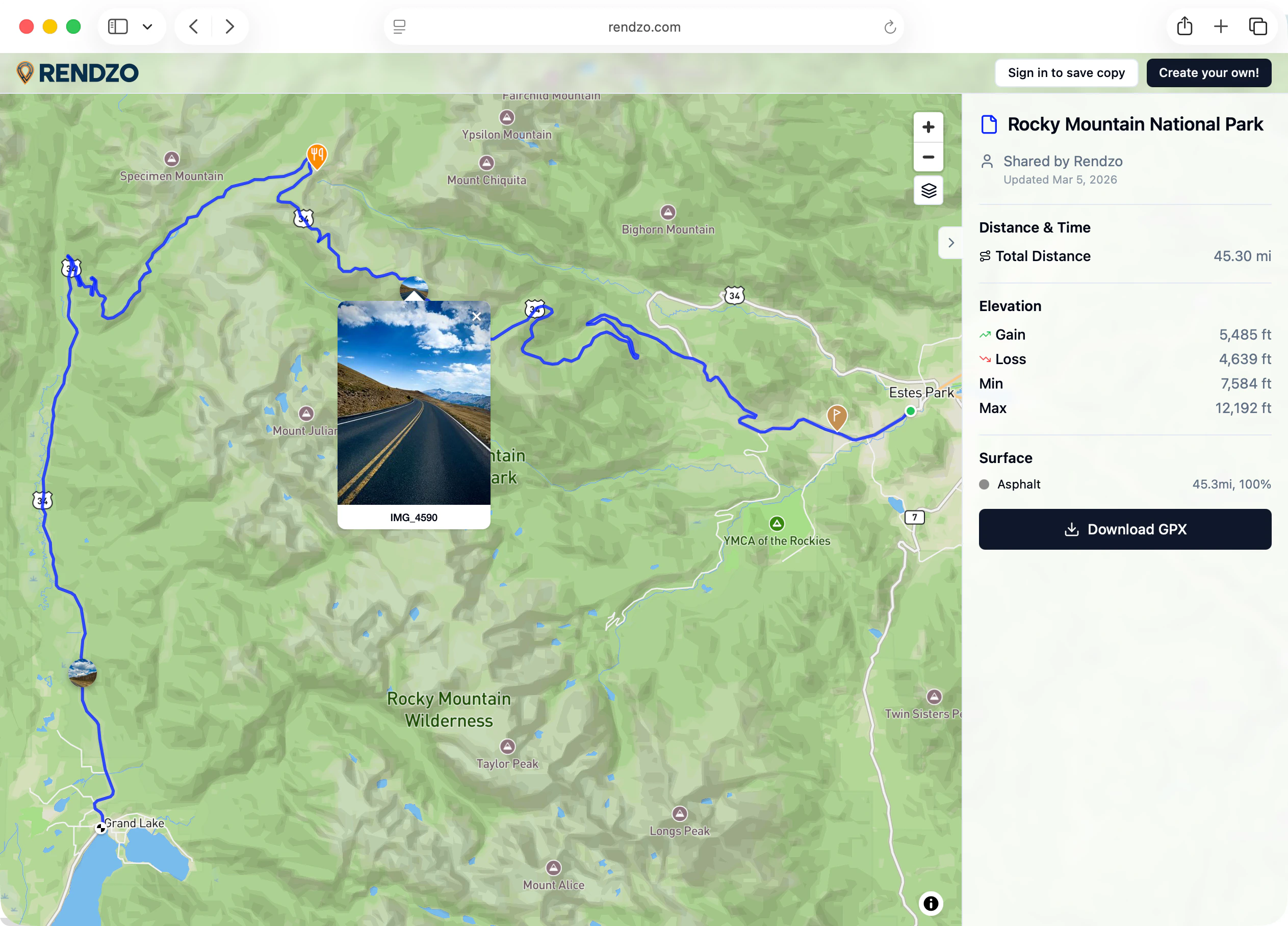
When someone opens your share link, they see a full-screen map with:- All shared tracks rendered with their colors
- Waypoints with symbols and cover photos
- A right-side drawer with file details, statistics, and a file list
- Basemap switcher (top-right) to change the map style
- Download button (if enabled) to save the GPX files
Shared with Me
When you save or accept a shared file, it appears in a special Shared with Me folder. These are reference files that stay in sync with the original.- Viewer references read-only access to the file/folder — you cannot rename, move, edit, or trash them
- Editor references you edit the folder, tracks, add waypoints, and upload/manage media
Saving a Share
If someone sends you a public link and you’re logged in, you can save a copy by clicking Save on the shared map page. The content appears in your Shared with Me folder.Unsubscribing
To remove a shared file from your account:- Open the file’s Info Panel
- Go to the Sharing tab
- Click Unsubscribe
Sync
Shared content stays up to date automatically:- Folder shares are live — When the owner adds new files to a shared folder, they appear for all recipients on the next sync
- Editor changes sync to other userse — Edits made by editors are broadcast to the owner and other editors via the sync system
- Owner changes propagate — When the owner renames a file, updates a description, or modifies a route, viewers and editors see the changes on their next sync
- Deletions cascade — If the owner trashes a file, it disappears from all recipients’ Shared with Me folders
Managing Your Shares
As a share owner, you can:- Add or remove files/folders from an existing share
- Change member roles between Viewer and Editor
- Remove members to revoke their access
- Toggle public access on or off at any time
- Delete the share entirely to remove access for everyone