> ## Documentation Index
> Fetch the complete documentation index at: https://rendzo.com/docs/llms.txt
> Use this file to discover all available pages before exploring further.
# Sharing
> Share your GPX files and folders with anyone via public links or direct invitations
Share your files, and folders with friends, riding groups, or the public. Recipients see your content on a beautiful full-screen map preview — no Rendzo account required.
 ## Sharing a File or Folder
You can share from several places in the app:
* **Right-click** a file or folder in the file tree and select **Share**
* Open the **Info Panel** and click the **Sharing** tab
* Use the **Share** button in the dashboard folder view
When you share a file or folder, Rendzo creates a public share with a unique link automatically.
## Public Links
Toggle **Public link** on to generate a shareable URL. Anyone with the link can view your content on a standalone map page.
* **Allow download** — Let visitors download the original GPX files (on by default)
* **Regenerate link** — Invalidate the current URL and create a new one. Useful if you shared a link you want to revoke
The share URL looks like: `rendzo.com/shared/abc123?code=...`
The link includes a secure access code. Simply deleting the share ID from the URL won't give anyone access — both parts are required.
## Inviting People
Inviting people by email requires a **Pro** subscription. Public links are available on all plans. All plans can receive a shared File/Folder as a Viewer or Editor.
Switch to the **People** tab in the share dialog to invite specific users by email.
* Enter their email address
* Choose a role: **Viewer** or **Editor**
* Click **Send**
Invited users will see the share in their **Shared with Me** folder after accepting.
### Roles
* **Viewer** — Can view files and tracks on the map. Cannot edit, upload media, or rename.
* **Editor** — Full editing access: modify routes, add waypoints, upload media, and rename files.
Editors can upload and delete media on your files. Media they upload counts toward your storage and belongs to your account.
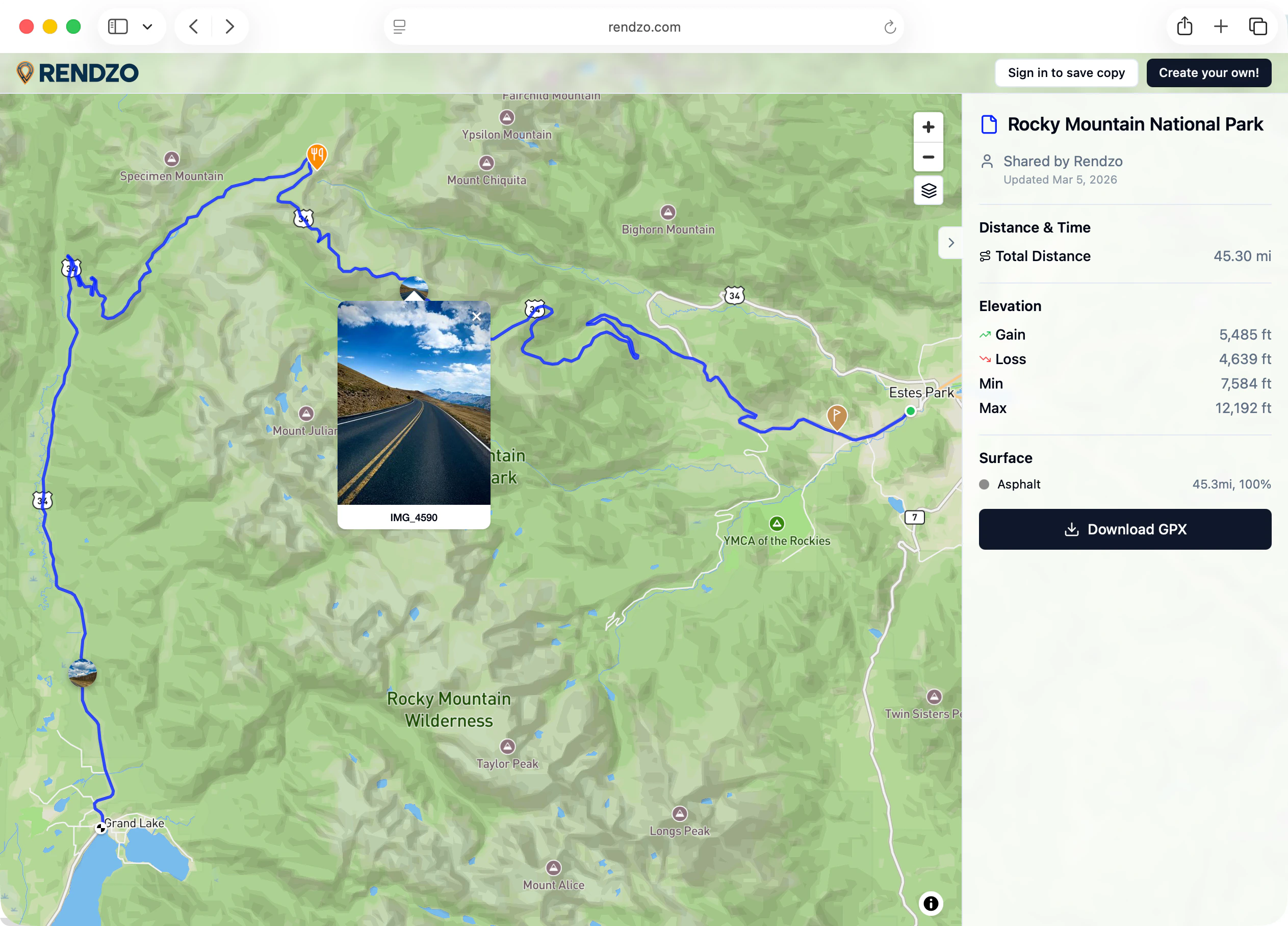
## Shared Map Preview
When someone opens your share link, they see a full-screen map with:
* All shared tracks rendered with their colors
* Waypoints with symbols and cover photos
* A right-side drawer with file details, statistics, and a file list
* Basemap switcher (top-right) to change the map style
* **Download** button (if enabled) to save the GPX files
The preview matches exactly how your routes look in the Rendzo app, including your preferred POI styles and waypoint icons.
## Shared with Me
When you save or accept a shared file, it appears in a special **Shared with Me** folder. These are reference files that stay in sync with the original.
* **Viewer references** read-only access to the file/folder — you cannot rename, move, edit, or trash them
* **Editor references** you edit the folder, tracks, add waypoints, and upload/manage media
### Saving a Share
If someone sends you a public link and you're logged in, you can save a copy by clicking **Save** on the shared map page. The content appears in your Shared with Me folder.
### Unsubscribing
To remove a shared file from your account:
1. Open the file's **Info Panel**
2. Go to the **Sharing** tab
3. Click **Unsubscribe**
This removes the reference files from your account but does not affect the original owner's files.
## Sync
Shared content stays up to date automatically:
* **Folder shares are live** — When the owner adds new files to a shared folder, they appear for all recipients on the next sync
* **Editor changes sync to other userse** — Edits made by editors are broadcast to the owner and other editors via the sync system
* **Owner changes propagate** — When the owner renames a file, updates a description, or modifies a route, viewers and editors see the changes on their next sync
* **Deletions cascade** — If the owner trashes a file, it disappears from all recipients' Shared with Me folders
If you and another editor make changes at the same time, the last write (server's version) wins automatically. You'll see a notification and your undo history will reset.
## Managing Your Shares
As a share owner, you can:
* **Add or remove files/folders** from an existing share
* **Change member roles** between Viewer and Editor
* **Remove members** to revoke their access
* **Toggle public access** on or off at any time
* **Delete the share** entirely to remove access for everyone
Files and folders that are actively shared show a small **share icon** next to their name in the dashboard, so you can see at a glance what's being shared. Blue indicates shared as view, green indicates shared with editor access.
## Sharing a File or Folder
You can share from several places in the app:
* **Right-click** a file or folder in the file tree and select **Share**
* Open the **Info Panel** and click the **Sharing** tab
* Use the **Share** button in the dashboard folder view
When you share a file or folder, Rendzo creates a public share with a unique link automatically.
## Public Links
Toggle **Public link** on to generate a shareable URL. Anyone with the link can view your content on a standalone map page.
* **Allow download** — Let visitors download the original GPX files (on by default)
* **Regenerate link** — Invalidate the current URL and create a new one. Useful if you shared a link you want to revoke
The share URL looks like: `rendzo.com/shared/abc123?code=...`
The link includes a secure access code. Simply deleting the share ID from the URL won't give anyone access — both parts are required.
## Inviting People
Inviting people by email requires a **Pro** subscription. Public links are available on all plans. All plans can receive a shared File/Folder as a Viewer or Editor.
Switch to the **People** tab in the share dialog to invite specific users by email.
* Enter their email address
* Choose a role: **Viewer** or **Editor**
* Click **Send**
Invited users will see the share in their **Shared with Me** folder after accepting.
### Roles
* **Viewer** — Can view files and tracks on the map. Cannot edit, upload media, or rename.
* **Editor** — Full editing access: modify routes, add waypoints, upload media, and rename files.
Editors can upload and delete media on your files. Media they upload counts toward your storage and belongs to your account.
## Shared Map Preview
When someone opens your share link, they see a full-screen map with:
* All shared tracks rendered with their colors
* Waypoints with symbols and cover photos
* A right-side drawer with file details, statistics, and a file list
* Basemap switcher (top-right) to change the map style
* **Download** button (if enabled) to save the GPX files
The preview matches exactly how your routes look in the Rendzo app, including your preferred POI styles and waypoint icons.
## Shared with Me
When you save or accept a shared file, it appears in a special **Shared with Me** folder. These are reference files that stay in sync with the original.
* **Viewer references** read-only access to the file/folder — you cannot rename, move, edit, or trash them
* **Editor references** you edit the folder, tracks, add waypoints, and upload/manage media
### Saving a Share
If someone sends you a public link and you're logged in, you can save a copy by clicking **Save** on the shared map page. The content appears in your Shared with Me folder.
### Unsubscribing
To remove a shared file from your account:
1. Open the file's **Info Panel**
2. Go to the **Sharing** tab
3. Click **Unsubscribe**
This removes the reference files from your account but does not affect the original owner's files.
## Sync
Shared content stays up to date automatically:
* **Folder shares are live** — When the owner adds new files to a shared folder, they appear for all recipients on the next sync
* **Editor changes sync to other userse** — Edits made by editors are broadcast to the owner and other editors via the sync system
* **Owner changes propagate** — When the owner renames a file, updates a description, or modifies a route, viewers and editors see the changes on their next sync
* **Deletions cascade** — If the owner trashes a file, it disappears from all recipients' Shared with Me folders
If you and another editor make changes at the same time, the last write (server's version) wins automatically. You'll see a notification and your undo history will reset.
## Managing Your Shares
As a share owner, you can:
* **Add or remove files/folders** from an existing share
* **Change member roles** between Viewer and Editor
* **Remove members** to revoke their access
* **Toggle public access** on or off at any time
* **Delete the share** entirely to remove access for everyone
Files and folders that are actively shared show a small **share icon** next to their name in the dashboard, so you can see at a glance what's being shared. Blue indicates shared as view, green indicates shared with editor access.